# Google
# Syncing Computers - Chrome
**Follow these steps to sync data (websites, passwords, history, favorites, etc) between multiple computers. This includes a desktop, laptop, and Dell Board. This is NOT NECESSARY when using Chromebook.**
- Check to see if you're already synced. Try this on each computer.
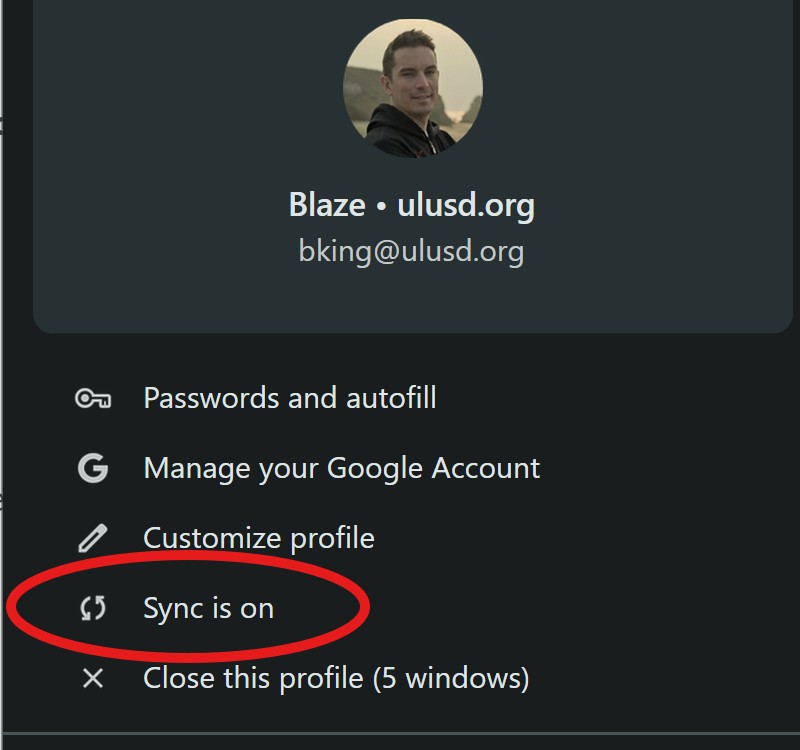
When Google Chrome is open, click your profile picture in the upper right corner. If you see that "Sync is on", you're done! If you see a blue button that says" Turn on sync", continue to Step 2.
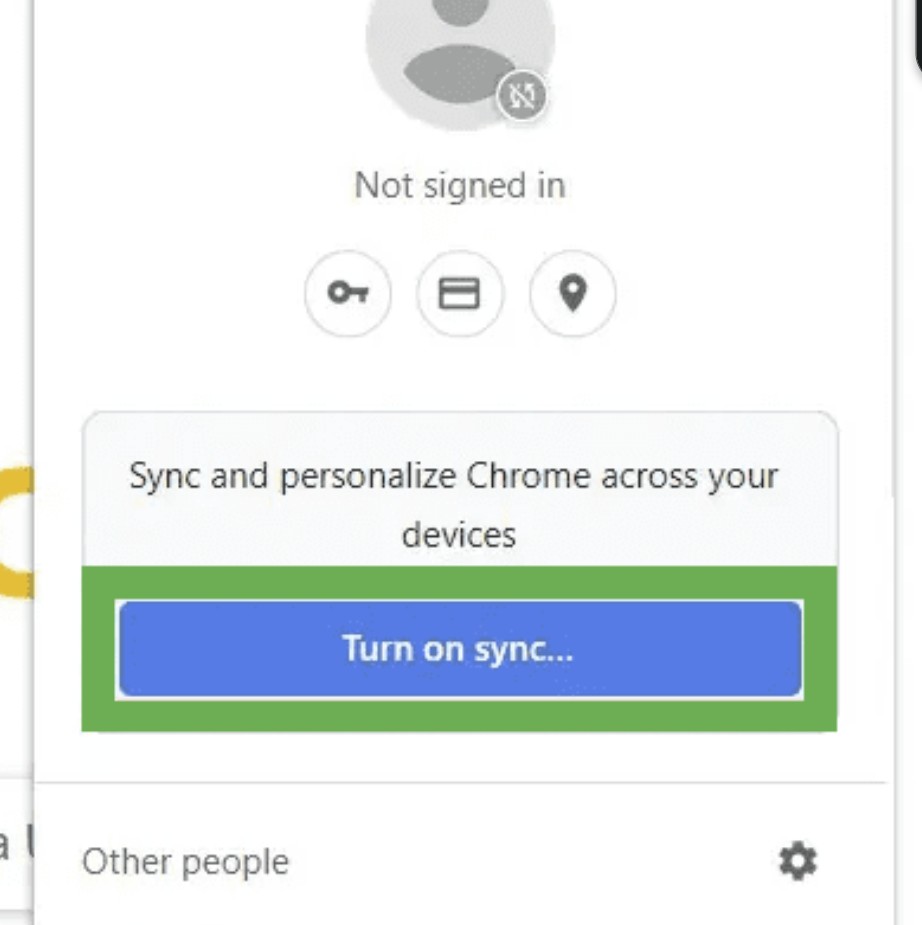
- Click the blue "Turn on sync" button and sign into your ULUSD Google account.
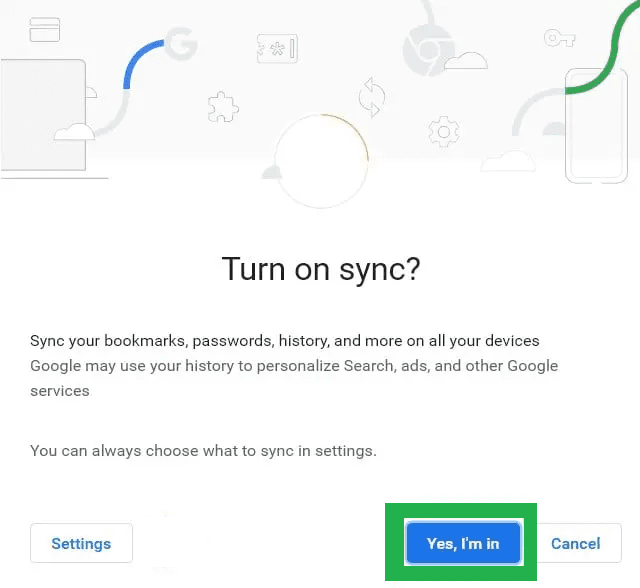
- When asked if you'd like sync profiles, make sure to click "Continue" and "Yes I'm in." This will begin the sync process.
- Repeat steps 2 and 3 for every other ULUSD computer you'd like to sync.
- That’s it! You’re done. If you would like to create a unique pin for your laptop, follow the instructions described [at this link](https://ulusd.freshdesk.com/a/solutions/articles/73000561443).
# Google Two-Factor Authentication (2FA)
Beginning **March 15th 2024**, Upper Lake Unified School District will begin enforcing “two-factor authentication” on all ULUSD employee Google accounts. You may know it by other names like “2FA”, “two-step verification”, or “multi-factor authentication (MFA)”.
##### **What is two-factor authentication?**
Two-factor authentication adds a second layer of protection during the login process. Currently, your Google login is tied to “something you know” (your password). Two-factor authentication adds the second layer of “something you have” (typically your smartphone or a temporary code). You most likely already have experienced using two-factor authentication with an online banking account, so enabling it within Google hopefully will not be a new experience.
##### **Why are we implementing two-factor authentication?**
Our cyber insurance provider's requirements for our organization are driven by an ongoing review of what security-related best practices are appropriate. Times are changing and hackers are finding new and creative ways to acquire user passwords. Adding a second form of verification dramatically decreases the likelihood of your password being compromised.
##### **How often will I need to use two-factor authentication?**
Google will require two-factor authentication every time you log in to a computer or Chromebook, but you'll have the option to "remember this device". From that point on, Google will not prompt you to perform two-factor authentication on that device unless you clear your browser’s cache, change your password, or if Google suspects that your account has been breached.
##### **What’s the timeline for this change?**
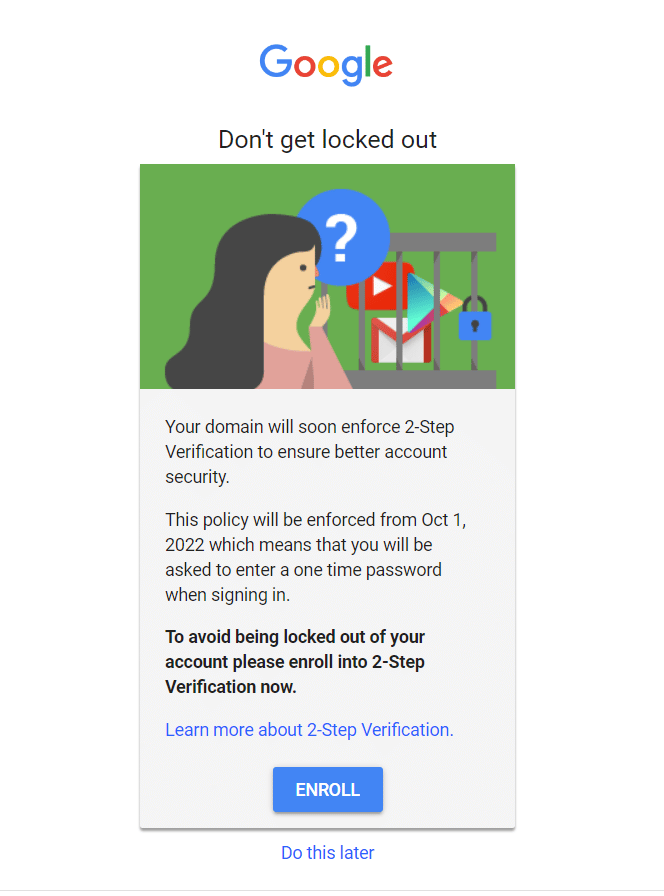
We will be migrating all ULUSD staff by March 15th 2024. You will soon receive an email with instructions on how to enable Google 2-Factor Authentication. **If you do not enable two-factor authentication by the date listed you will be locked out of your account and you will need to contact ULUSD IT to regain access.** You will be reminded to enable two-factor authentication during the grace period leading up to the end date listed in the email. An example notification message will look like this:
[](https://bookstack.ulusd.org/uploads/images/gallery/2025-10/eeIRBtuSCEw6IYQ0-image.png)
# Instructions for enabling and using 2-Step Verification on your Google account
### How do I turn on 2-Step Verification?
When you enable 2-Step Verification (also known as two-factor authentication, 2FA, or MFA), you add an extra layer of security to your account. You sign in with something you **know** (your password) and something you **have** (like a code sent to your phone).
To set up 2-Step Verification:
1. Go to your Google Account's [2-Step Verification page](https://myaccount.google.com/signinoptions/two-step-verification/enroll-welcome?rapt=AEjHL4NXNOj3Dey1iiKoHIsgxSwhNcj219Uz7BBF9fMRG8qB3t6bUuzelTLqJ7G0hxPmeV-HZ6ZHiEk_H56HegzQmT_YJaALPQ). You will be prompted to sign in to your ULUSD Google Account.
2. Click Get started.
3. Follow the quick step-by-step setup process to use your phone, or select "Show more options" to select an alternate method.
### How do I sign in with 2-Step Verification?
Signing in with 2-Step Verification is easy.
- Go to the sign-in page of your mail or any other ULUSD Google application that employs Google Single Sign-On, and enter your username and password like you normally do.
- Every 30 days (or every time you try logging in on a new device), you’ll be sent a push notification to your phone, asked for a six-digit code (also sent to your phone), or prompted to insert a backup code, depending on which option you chose during initial set-up. If you want, when you enter your verification, you can choose to trust your computer -- this means you won't be asked for a code again when you sign in from this computer. If you sign in from another computer, however, you’ll be asked for your 2nd form of verification.
## Alternate Methods
### What if I don't want to use my phone?
Don’t want to use your phone? No problem. You can sign in using [backup codes (instructions)](https://support.google.com/accounts/answer/1187538?hl=en&ref_topic=7189145).