# Syncing Computers - Chrome
**Follow these steps to sync data (websites, passwords, history, favorites, etc) between multiple computers. This includes a desktop, laptop, and Dell Board. This is NOT NECESSARY when using Chromebook.**
- Check to see if you're already synced. Try this on each computer.
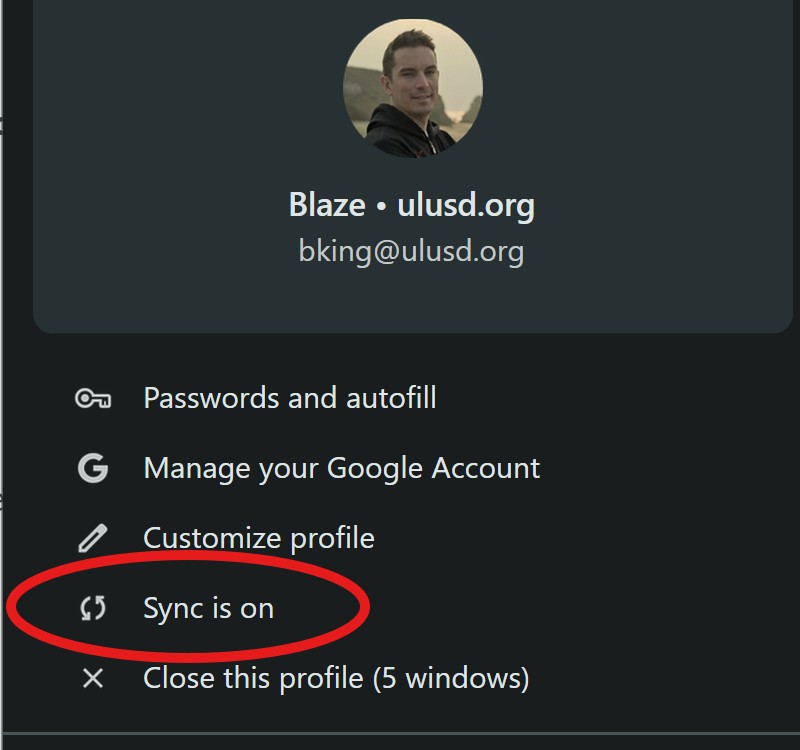
When Google Chrome is open, click your profile picture in the upper right corner. If you see that "Sync is on", you're done! If you see a blue button that says" Turn on sync", continue to Step 2.
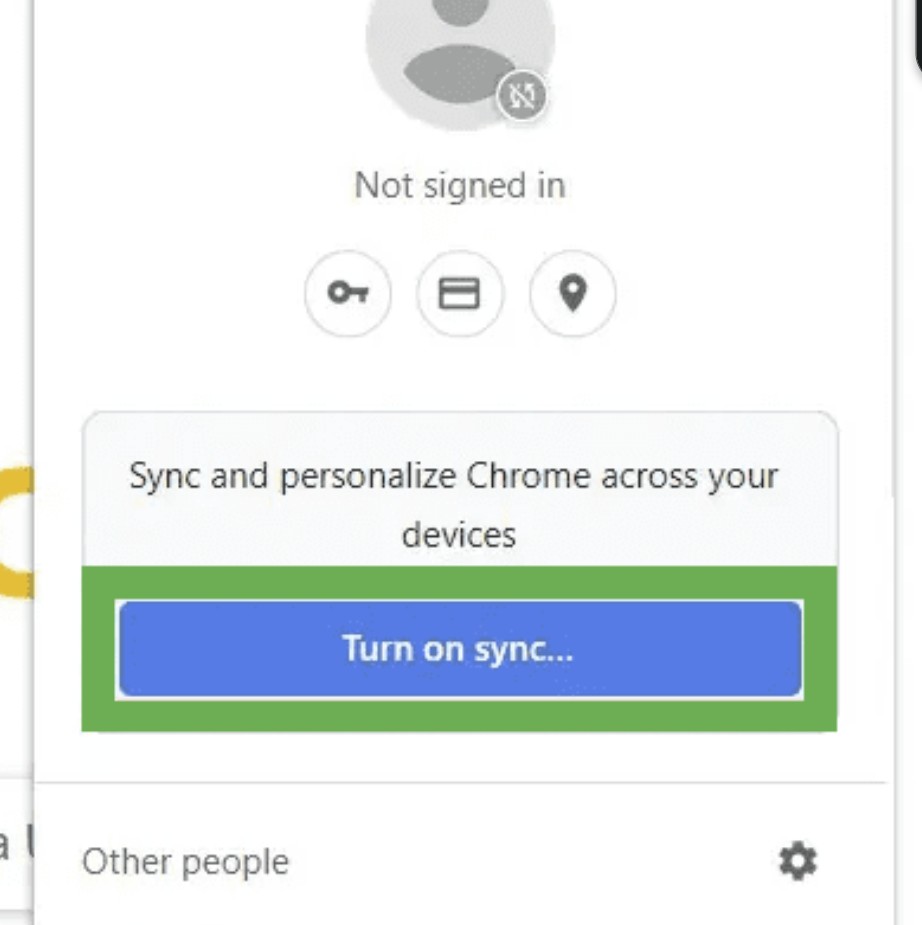
- Click the blue "Turn on sync" button and sign into your ULUSD Google account.
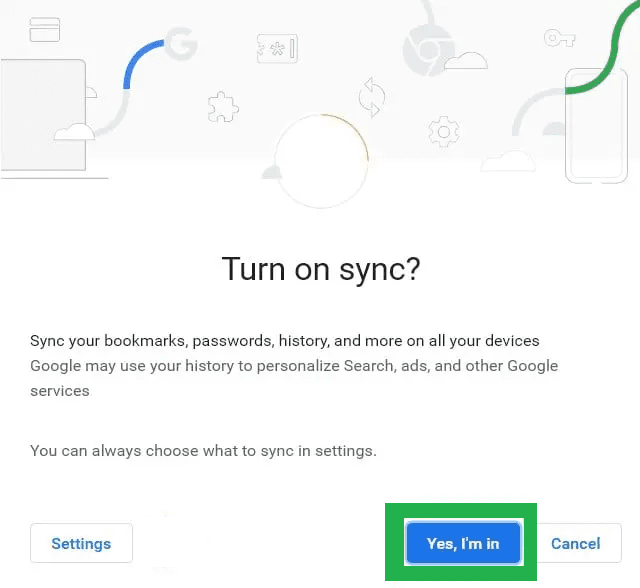
- When asked if you'd like sync profiles, make sure to click "Continue" and "Yes I'm in." This will begin the sync process.
- Repeat steps 2 and 3 for every other ULUSD computer you'd like to sync.
- That’s it! You’re done. If you would like to create a unique pin for your laptop, follow the instructions described [at this link](https://ulusd.freshdesk.com/a/solutions/articles/73000561443).