# Windows
# Set up PIN sign-in
#### **How to set up a Sign-in PIN for your Windows 10 laptop or Dell Board**
1. Select Settings from the Start menu
2. Select Accounts in the Settings app
3. On the ACCOUNTS page, select Sign-in options from the options on the left
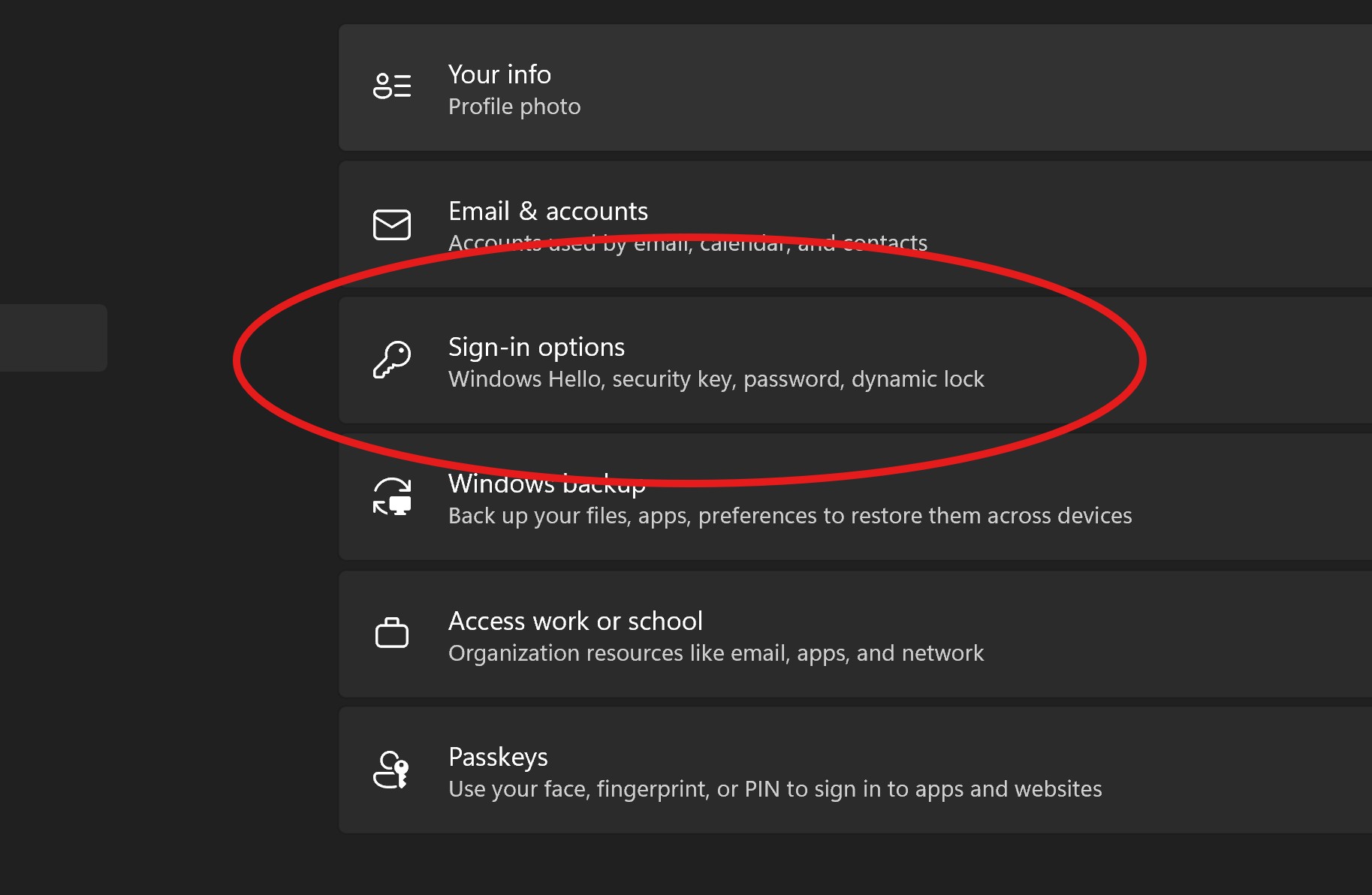
4. Click “Windows Hello PIN”, then click Add
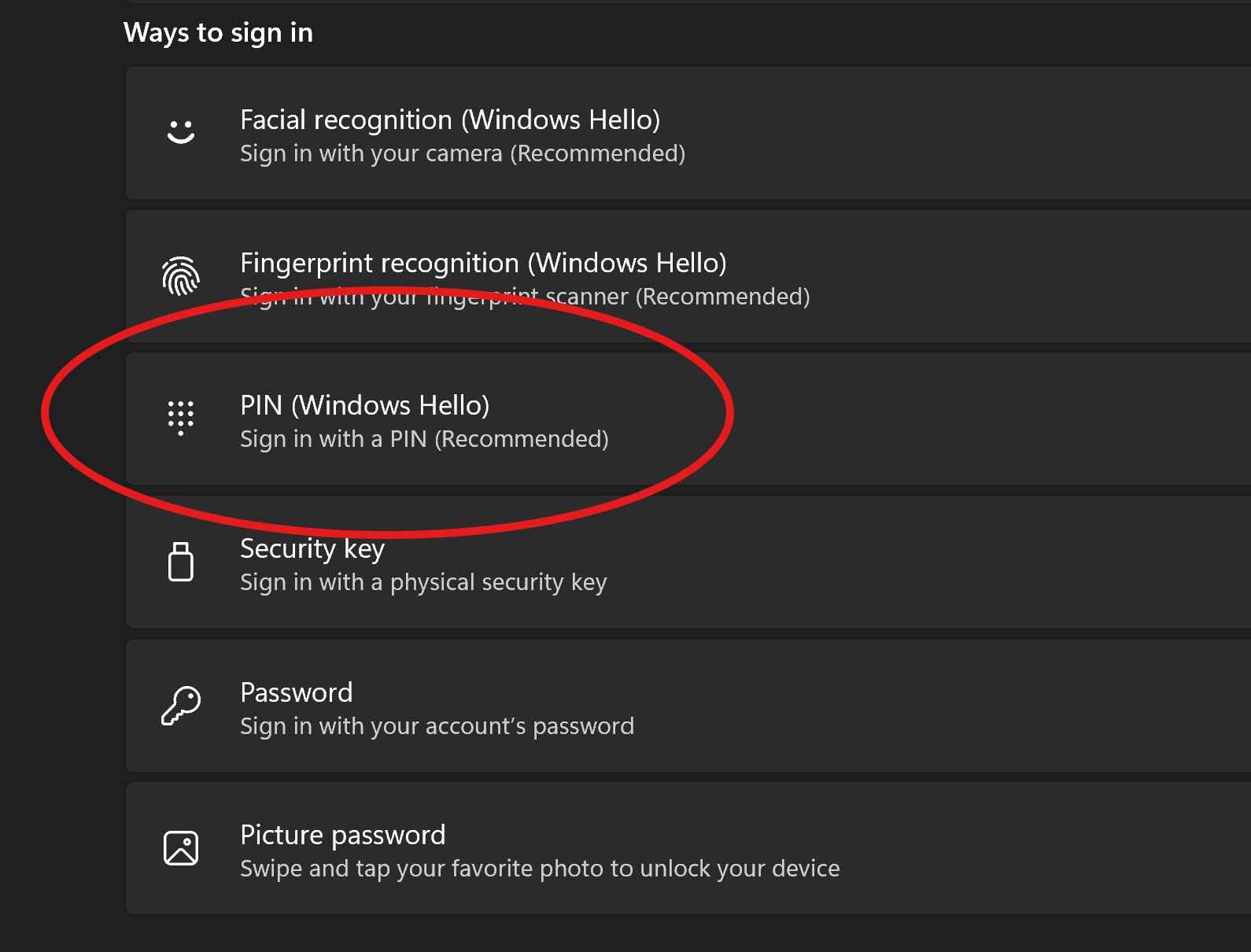
5. Verify your Microsoft account password and click OK
6. Now enter a PIN for the device and click Finish
7. If you want to change the PIN at a later time, you can come back to the ACCOUNTS screen in the Settings app and click Change under PIN
# Login into ULUSD staff computers
#### – Laptops, Desktops, and Dell Boards –
1. On your first logon to a new device, choose "Other user"
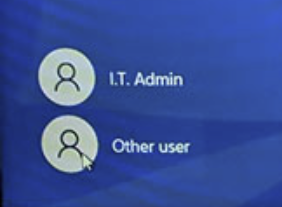
2. Enter your username (first initial last name) and password. Temporary password provided by IT in email sent to you directly.
3. IF THIS IS YOUR FIRST TIME SIGNING IN USING THIS NEW METHOD, you will be required to update your password. You are only asked to update your password once using this new method.
4. CHOOSING YOUR PASSWORD:
1. The password you choose will ALSO update your ULUSD Google password, so choose something you will remember.
2. To meet the new password security requirements, your password needs to have the following:
1. 8 or more characters
2. 3 out of the 4 categories:
1. Uppercase letter
2. Lowercase letter
3. Number
4. Special characters (!@#$%^&, etc)
5. That’s it! You’re in. If you would like to create a unique pin for your laptop, follow the instructions described [at this link](https://ulusd.freshdesk.com/a/solutions/articles/73000561443).